What kind of SD card can I use?
Your FS81 is compatible with SD cards up to 32GB and must be Class 4 or above. It's recommended to format the card in the scanner before using it as an unformatted card may display a "Cluster Size Error message".
Formatting will delete all data from the SD card.
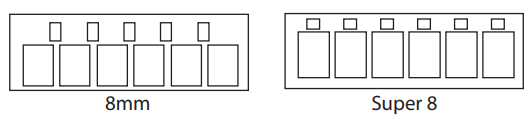
How do I know if my film is 8mm or Super 8?
The most noticeable difference between 8mm and Super 8 is the position of the sprocket holes, the perforated edge of the film.
Why is the film not feeding through the scanner?
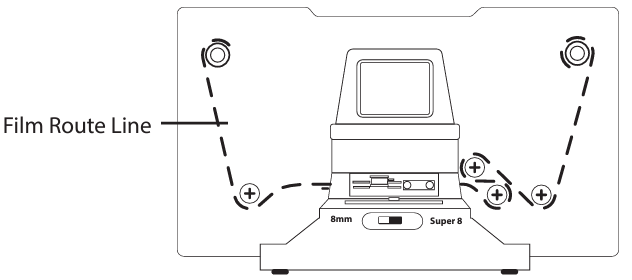
If you find the film is not moving while the scanner is running, the first place to look is the feed path of the scanner.
The film must be run through the feed path shown by the dotted line on the front of the scanner.
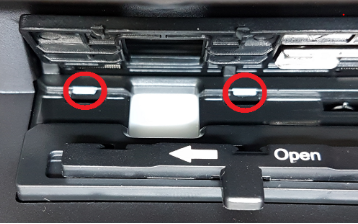
When you reach the scanning window, you will notice two white tabs to the left and right of the window. The perforated edge of the film must be under these tabs:
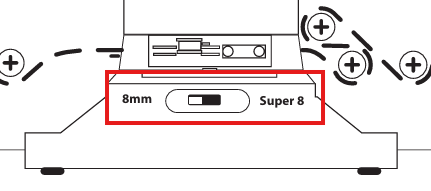
Set the film size switch on the front of the scanner to match your film format of either 8mm or Super8. If the incorrect size is selected, the film may not feed and the image will be out of frame.
Why is my saved video jittery?
There are a few different reasons your recorded video could be jittery, or appear to jump around:
- The holes in the film may be worn from use over the years, making if difficult for the scanner to feed smoothly.
- The SD card is older or a speed class lower than 4. Formatting the SD card can also correct this in some cases.
- The film is not under the white tabs pictured above.
How do I make the picture clearer?
If your scans have more grain than expected, you can decrease the sharpness which will soften the video. To do so follow these steps:
- Press Menu.
- Press the Right Arrow until you reach Sharpness.
- Press OK.
- Use the arrows to select LOW.
- Press OK.
Not all film will be the same quality, you may need to try different settings to get the best results.
Why does my scanner say Cluster Size error? How do I fix it?
This is a common error that can occur when you try to scan to an SD card that has been used in, has data from another device or exceeds the 32GB limit.
To resolve this, simply format the SD card in the scanner by formatting your SD card.
Formatting SD Card
Important: Formatting your SD card will cause all information to be erased, including protected files.
1. Press the "MENU" button to go to the main menu use the "RIGHT ARROW" button to go to Format.
2. Press the "OK" button to select Format.“All data will be deleted” warning will appear.
Press the "RIGHT ARROW" button to select “OK” and press the “OK” button to format.
3. Your SD card is now formatted
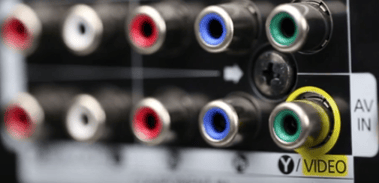
Why is my FS81 black and white on my TV?
Modern TVs are beginning to phase out the analog RCA connections found on older TVs.
When your film scanner is connected to the incorrect video input , it can appear in black and white.
If your TV does not have a yellow RCA port, some TVs use the green Component input for video. For specific information, please refer to your television manual or manufacturer.