
The colors are wrong on my pictures
- In the main menu, use the left and right arrows to find the Film Type menu option.
- Press OK to select.
- Select the type of film you are scanning, then select the film size.
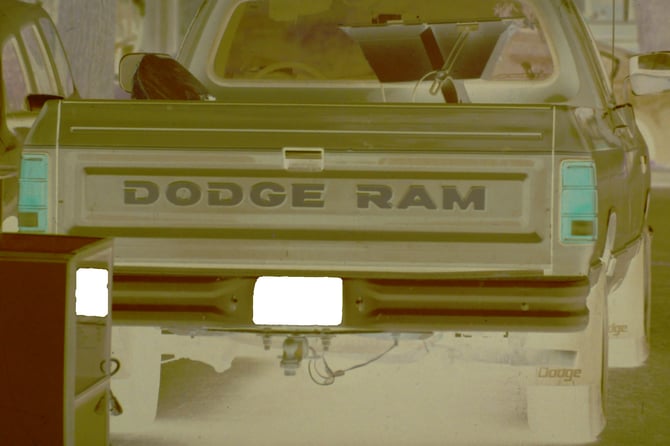
The images below show what happens when the correct, and incorrect options are selected.
Normal Scan of a 35mm slide set to 35mm/135 slide
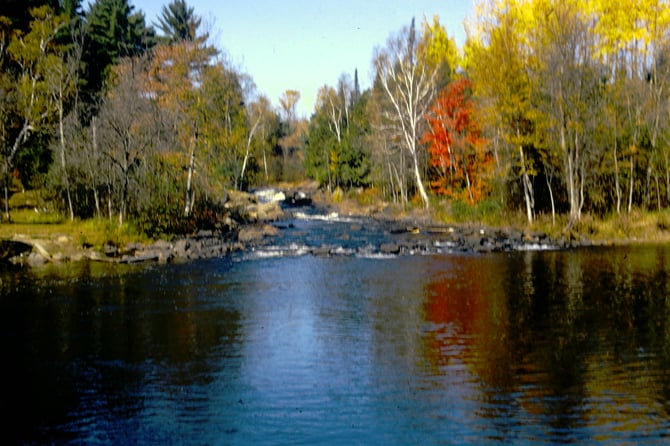
Scan of a 35mm slide when set to 35mm/135 negative
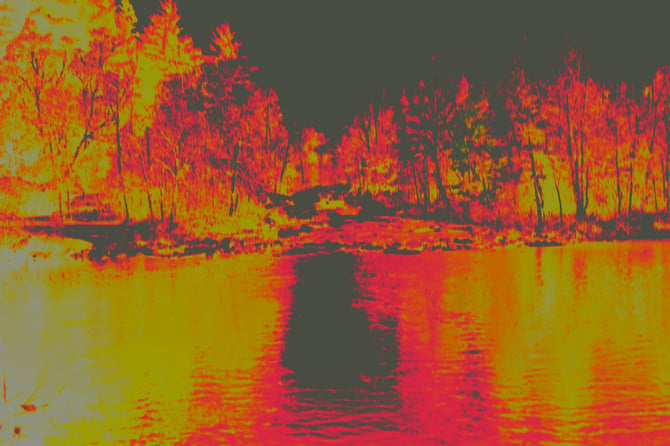
Normal scan of a 35mm negative when set to 35mm/135 negative

Scan of a 35mm negative when set to 35mm/135 slide
Why does the scanner say it's full or doesn't recognize the SD card?
- Some film scanners provide limited internal storage. If you are scanning a large number of photos this will fill quickly. We recommend using a class 4 or above SD card with up to 128GB capacity.
- If using an SD card, it may need to be formatted. You can do this by following these steps:
- In the main menu, go to Format press the OK button.
- When prompted if you would like to format the media, use the < button to choose “Yes”. Press the OK button to begin formatting the SD card.
- "Format is successful" will appear when complete.
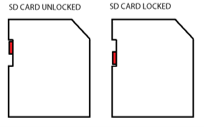
- The SD card may be locked. You can correct this by checking the position of the lock switch on the SD card.
- The card is being inserted incorrectly. The contacts should face upwards when you insert the SD card.
How do I save the pictures to my computer?
Magnasonic film scanners will not scan directly to your computer, you will need to follow the steps below to access the memory or SD card from a computer:
- Ensure your computer is powered on.
- Connect the film scanner to your computer via the included mini USB cable.
- Turn on the film scanner.
- In the film scanner menu, select USB Upload.
- A new folder will appear on your computer. Your saved images can be found
- here. You can now move these images from your scanner directly onto your computer.