FIRST TIME SET UP
Speaker Placement and Speaker Wire Connection
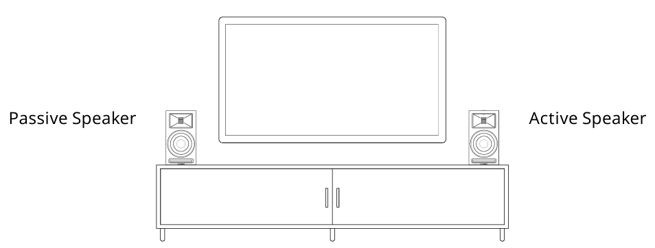
NOTE: If placing the speakers in a cabinet or on a shelf, position the front of the speakers as close as possible to the front edge of the shelf for optimum audio performance.
NOTE: The included speaker wire is 8ft. If placing your speakers further than 8ft apart it is recommended to use standard 18 gauge speaker wire to connect the speakers over the longer distance.
- Position the speakers with the Active Speaker on the right and the Passive Speaker on the left.
- Connect one end of the speaker wire to the binding posts on the back of the Active Speaker and connect the other end of speaker wire to the binding posts on the back of the Passive Speaker. IMPORTANT: Ensure the same wire is connected to the same color binding post on each speaker.
- Connect the power cable to the back of the Active Speaker and set the power switch to the ON position.
Switching Left and Right Channels
By default, the right channel is set to the Active Speaker. If your active speaker is placed on the left side, you may wish to switch the Right and Left channels between the Active and Passive Speakers. The steps below can be followed to change between audio channel configuration options.
- Press and hold the Mute button on the remote control for 3 secs.
- The LED will flash depending on the option selected:
- Option 1 (default) Active Speaker = Right Channel Passive Speaker = Left Channel LED Indicator: Flash source color 4x
- Option 2 Active Speaker = Left Channel Passive Speaker = Right Channel LED Indicator: Flash source color 2x
Note: This setting will be reset to the default Option 1 if the EQ Reset function is used.
HDMI ARC Setup/Troubleshooting
Confirm that your TV or audio source has an HDMI ARC connection, the HDMI port will be specifically labeled HDMI ARC or Audio Return Channel. While the speakers do not support eARC, it should still work while connected to an HDMI eARC port.
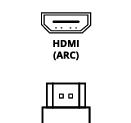
If you are not hearing sound over HDMI ARC, or your TV is not properly recognizing the speakers, try these steps:
- HDMI Connection: Ensure the HDMI cable is connected to the HDMI-ARC port on the TV.
- TV Audio Settings: Verify that the TV audio is set to HDMI.
- Auto-Detect: Ensure auto-detect is turned off.
- HDMI Cable Check: Unplug and plug all HDMI cables to check for any issues.
- HDMI ARC Setting: Enable-disable-enable the HDMI ARC setting (switch from HDMI ARC to internal speaker and back to HDMI ARC).
- Digital Sound Out Setting: Select PCM for troubleshooting. If it still doesn't work, switch back to Auto, then PCM, and Auto again.
- HDMI-CEC/Anynet+/Control Other Device: Enable this setting
- Power Cycling: Turn off the TV and speaker (make sure to use the switch on the back of the speaker), wait for 10 or more seconds, then power both devices back on.
- HDMI Refresh: Unplug all HDMI cables from the TV, unplug power cords from the TV and speaker, wait for 5 minutes, then reconnect all HDMI and power cables.
- Audio Check: Test audio on different devices if possible.
- Streaming Services: Check by changing source of media(Netflix, Disney, Amazon etc).
- Factory Reset: Perform a factory reset on the TV, then test again.
Turntable Setup
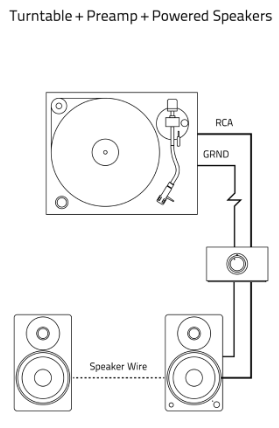
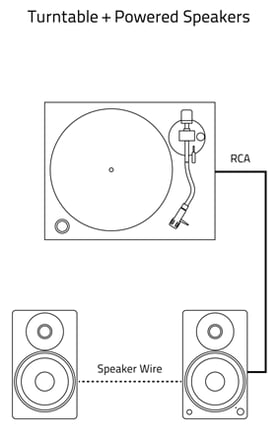
- Connect the RCA cable to your turntable. Note: If using a turntable an internal or external preamp is required.
- Connect the other end of the RCA cable to back of the Active Speaker.
- Press the Control Knob to select the RCA input (Green LED).
Note: It is recommended to connect a ground wire from the turntable or preamp to the Ground Terminal on the back of the Active Speaker.