
FIRST TIME SET UP
TDD20/21 Receiver Set Up
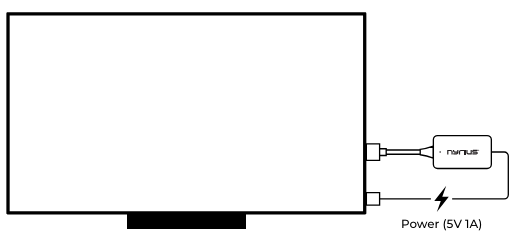
Connect the receiver to the HDMI input on the TV and plug in the power cord to the USB port on the TV or to a USB wall adapter (5V 1A).
TDD20 Transmitter Set Up
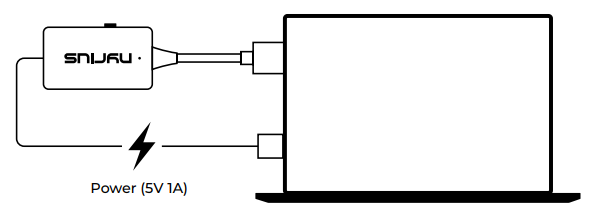
Connect the Transmitter to the HDMI output on the source device and plug the power cord into the USB port on the source device or to a USB wall adapter (5V 1A)
TDD21 Transmitter Set Up (USB-C only)
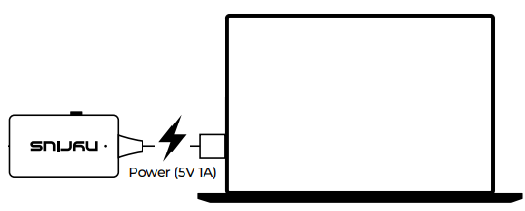
Connect the transmitter to a USB-C Port on your video source, it will also receive power from this connection
FREQUENTLY ASKED QUESTIONS
What is the maximum range of Orion?
Nyrius Orion is capable of wireless transmission up to 50ft indoors, and 150ft outdoors. Objects such as walls and floors may impact these ranges.
What can I connect Orion to?
TDD20 - any video source with an HDMI out connection.
TDD21 - any video source with USB-C to video capabilities (Smartphones, computers, etc)
Does Orion require an app?
No apps required!
Does Orion require a Wi-Fi connection?
Orion uses a secure wireless connection directly between the transmitter and receiver, it does not connect to your Wi-Fi network.
Is Orion latency free?
Orion does have up to 90ms latency, for this reason it is not recommended for gaming.
Can I use more than one transmitter or receiver?
Both models use a direct connection between the transmitter and receiver. Additional transmitters and receivers cannot be connected.
TROUBLESHOOTING
What if they don't connect??
- Ensure that the transmitter and receiver are within range of each other (up to 150ft), and within line of sight where possible.
- Confirm the signal button has not been pressed. This will stop wireless transmission until it is pressed again.
- Confirm the transmitter is connected to a video output. The transmitter should not be connected a television as they do not typically include a video output connection.
- Check your output resolution (PC/laptop) to ensure it is supported by the Nyrius Orion - 1080p, 720p, 576p, 480p.
- Walls and floors may reduce this distance.
- Wireless routers may cause interference while in use, ensure your transmitter and receiver are a minimum 6 feet away from wireless routers. To determine if a router is the source of interference, it may be necessary to disconnect it from power momentarily and test your Nyrius device.
- Wireless devices can be subject to interference, this can result in a loss of signal, or intermittent signal.
- Ensure that the transmitter and receiver have sufficient ventilation. Excess heat can cause connectivity issues.