
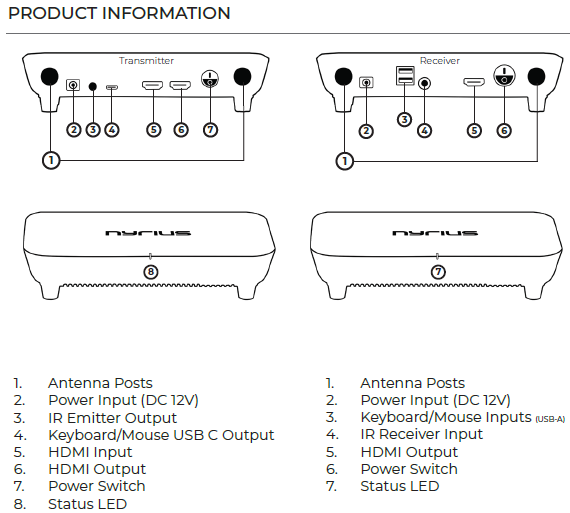
FIRST TIME SET UP
-
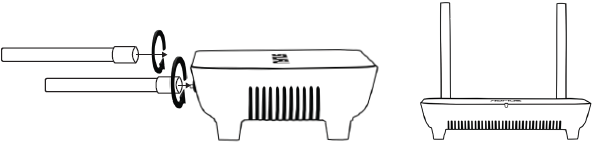
Install antennas on the antenna posts on both the Receiver and the Transmitter. Rotate the base of the antenna to tighten fully before positioning upright.
-
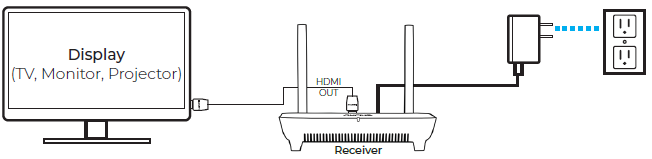
Plug a power adapter into the Receiver and then connect the Receiver to the display with an HDMI cable. Important: Complete all setup steps prior to turning the units on.
-
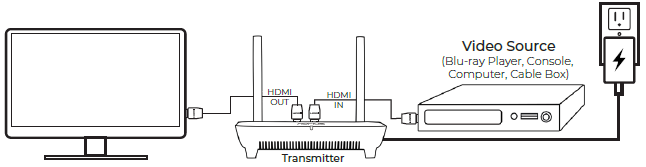
Plug a power adapter into the Transmitter and then connect the Transmitter to the Video Source Device with an HDMI cable inserted into HDMI IN. Connect the display to the Transmitter with an HDMI cable inserted into HDMI OUT.
-
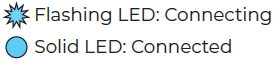
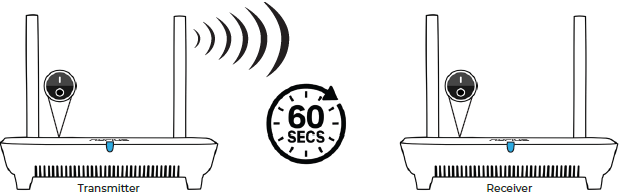
Flip the Power Switch on both the Transmitter and the Receiver. The Status LED will go solid when the units are connected. Note: It can take up to 1 minute to establish connection.
TROUBLESHOOTING
Antenna Orientation
The antenna of the Nyrius Phoenix True 4K60 Wireless HDMI-to-HDMI Transmitter & Receiver transmits 360° horizontally at a 45° vertical angle. Transmission range is up to 75ft through obstacles, and up to 500ft with direct line of sight.
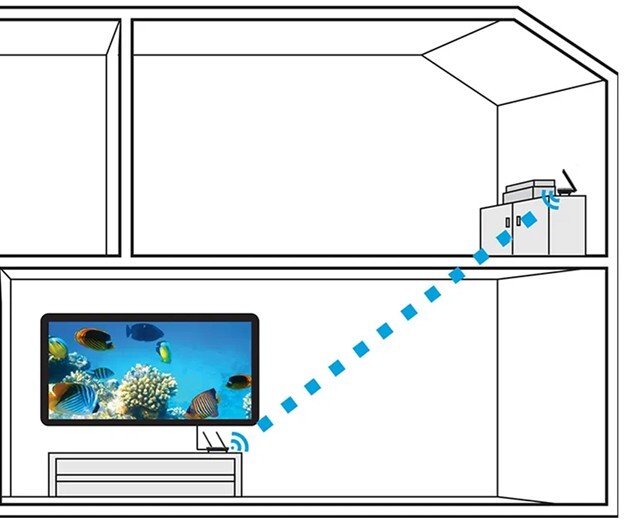
If you are using the Nyrius Phoenix through walls or on different levels/floors of a building, the antennas should be oriented parallel to each other as shown here:
No Connection
- Check that all connections are fully inserted, and that both devices are turned on.
- Ensure the Status LED on both the Transmitter and Receiver are on and flashing. This confirms the devices have power and are attempting to connect.
- Test Transmitter and Receiver with Line of Sight as walls and obstacles can decrease transmission distance.
- Position devices away from sources of interference such as Wi-Fi routers, smart devices, and microwaves.
No Video
- Ensure the Status LED on both the Transmitter and Receiver are on and solid. This confirms the devices are connected to each other.
- Confirm the display is set to the correct HDMI input.
- Verify the source device and display are compatible by testing with a wired connection. The source device can be a computer, a console, or a cable box but it cannot be another TV.
- Adjust the Resolution on the source device to be equal to or less than 4K at 60Hz.
Anything wireless that operates on a 2.4GHz 5GHz frequency has the potential to cause interference with your wireless devices.
The following is a list of common offenders found in most households:
Microwave Ovens: The use of microwave ovens near your computer, Wi-Fi router or other wireless devices may cause interference.
Cordless Phones : When on a call a cordless phone that operates on a 5GHz frequency can cause interference for wireless devices and networks.
All Wireless Devices: Any wireless devices that operate on a 5GHz bandwidth can cause interference with your other wireless devices. This can include security systems, wireless speakers, baby monitors, Bluetooth earpieces, garage door openers or other Wi-Fi devices.
Some External Monitors: Some display screens or external monitors can emit harmonic interference.
Direct Satellite Service: The coax cable and connectors used with satellite dishes can cause radio frequency interference (RF leakage) if damaged. If you’re experiencing interference and your cables display signs of tampering, try replacing the cables.
Wireless Barriers
Some materials can become barriers to the performance of your wireless device. To ensure a fully functioning wireless system you may need to consider the placement of your system or receiver in relation to the following materials: